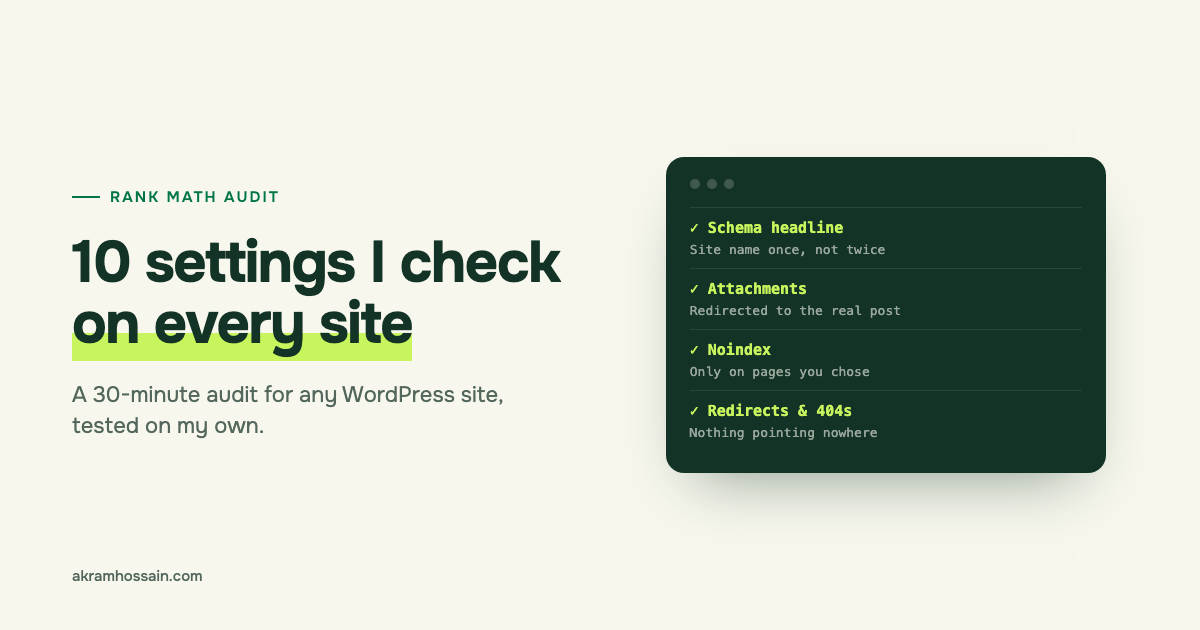
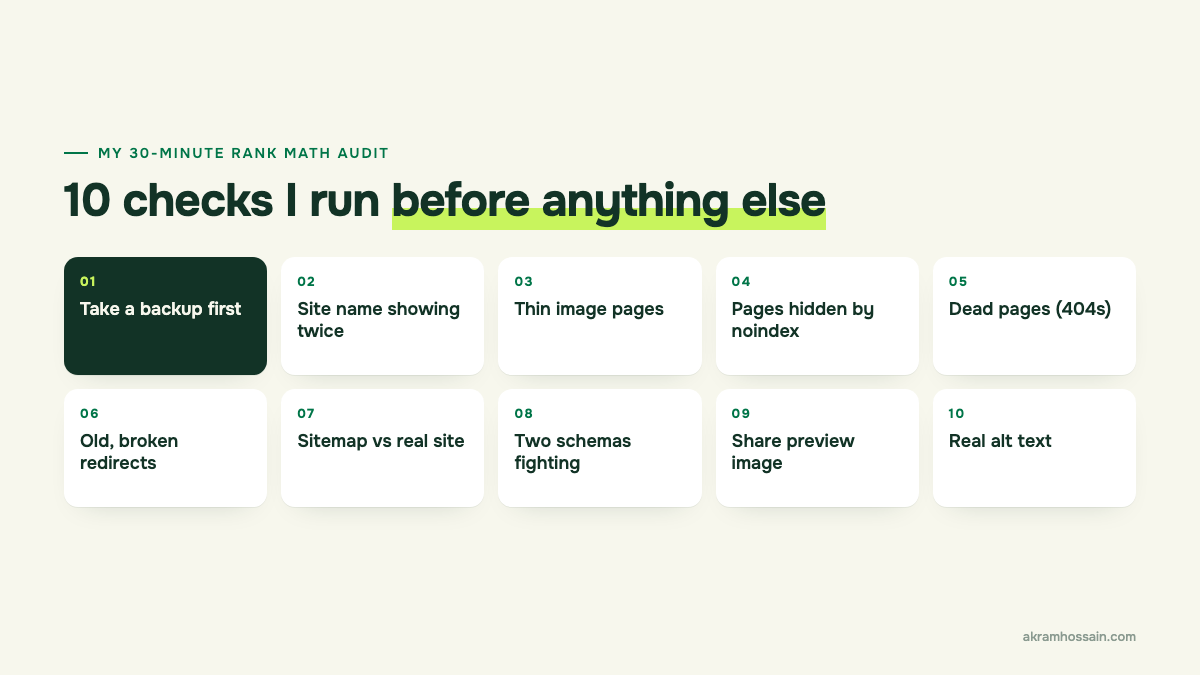
My own site failed my audit. Before I touch keywords on any client’s site, I run 10 quick checks in Rank Math to catch the problems nobody can see on the page. When I ran them on akramhossain.com this month, they caught my site name repeated in the code Google reads on 26 pages, 33 affiliate links that led nowhere and 29 images with no description at all. Below are all 10 checks, what each one found, and how to run them on your site in about 30 minutes.
I’m sharing my own mess on purpose. If a site run by an SEO person can quietly collect these problems, yours probably has a few too. The good news is that none of them needs a developer to fix.
One quick note before we start. This post is for a site that’s already live. If you’re setting up a brand-new site, use my post-launch SEO checklist with Rank Math instead. That one is about setting things up. This one is about finding what quietly broke.
Why I audit settings before anything else
Most sites I audit have been running for years. Different people have touched them. Plugins came and went. Someone changed a setting “just to test” and never changed it back.
None of this shows up on the page. Your site looks fine. But Google sees the code, the sitemap and the links behind the page, and that’s where these problems hide. If I skip this step and jump straight into content, I’m building on a shaky floor.
The good news? Most of these are 2 to 5 minute fixes once you know where to look.
1. Take a backup before you touch anything
This isn’t a Rank Math setting, but it’s always my first step. Some of the fixes below delete things or change settings across the whole site. If something goes wrong, you want a way back.
I do two things:
- A full site backup. I use UpdraftPlus, saving to Google Drive. Before a cleanup, I take a manual backup and make sure old backups aren’t deleted too soon. On my own site, the backup plan only kept 2 copies, which meant my “before” backup would have disappeared within a day. I raised it to 14.
- A Rank Math settings backup. Go to Rank Math SEO → Status & Tools → Backup and create one. It only saves Rank Math’s settings, but it means you can undo any setting change below in one click.
2. Is your site name showing up twice?
This is the one I find most often, and it’s almost always invisible.
Rank Math adds schema to every post. Schema is a small block of code that tells Google things like “this is an article, this is its headline, this is the author”. On my site, the headline in that code looked like this:
Rank Math AI Explained | Akram Hossain | Akram Hossain
My site name was there twice, on 26 pages. Nobody could see it on the page, but Google could.
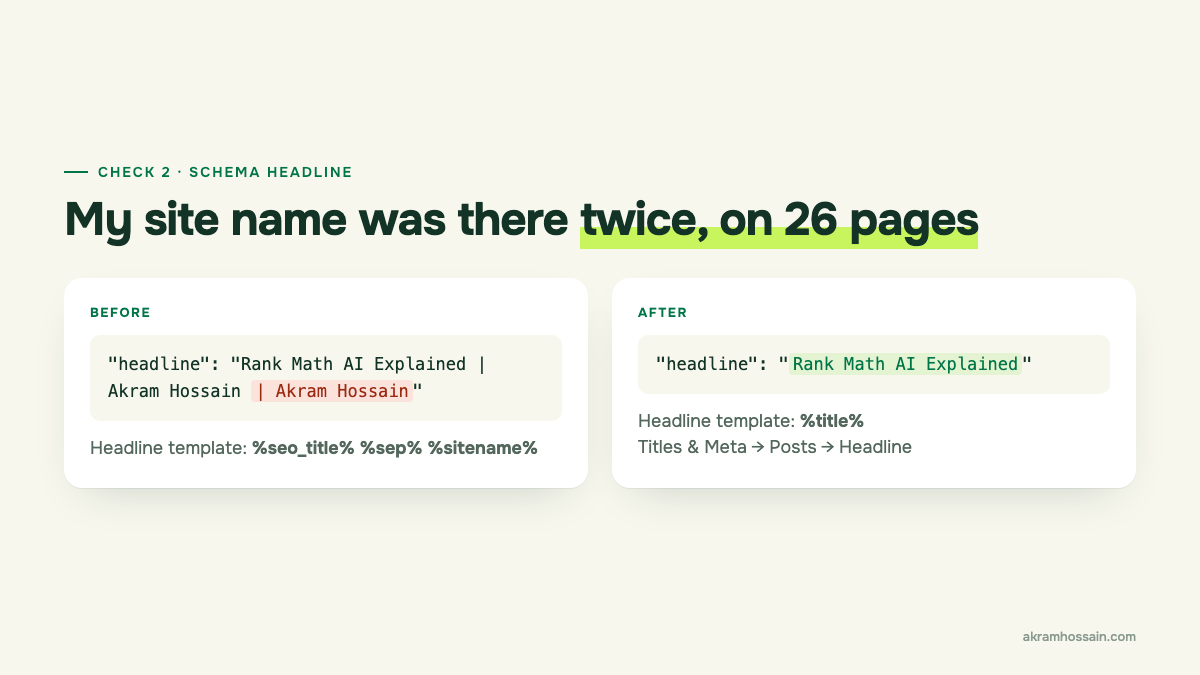
Why it happens: the SEO title already ends with your site name. Then the schema headline template adds the site name again on top. In my case, the headline was set to %seo_title% %sep% %sitename%.
How to check: open any blog post, right-click and choose “View page source”. Search for "headline" and read what comes after it.
How to fix: go to Rank Math SEO → Titles & Meta → Posts. Under Schema Type, find the Headline field and set it to just %title%. Save. Do the same for Pages if you use schema there.
One catch: posts where someone saved the schema by hand keep their own copy. On my site, 7 posts had that. Open those in the editor, go to the Schema tab, fix the headline and update the post.
3. Are your image pages turning into thin pages?
Every image you upload to WordPress gets its own little page, called an attachment page. It has the image and almost nothing else. To Google, that’s a thin, useless page, and a site with hundreds of images can have hundreds of them.
My media library had 954 files when I started. That’s a lot of possible thin pages.
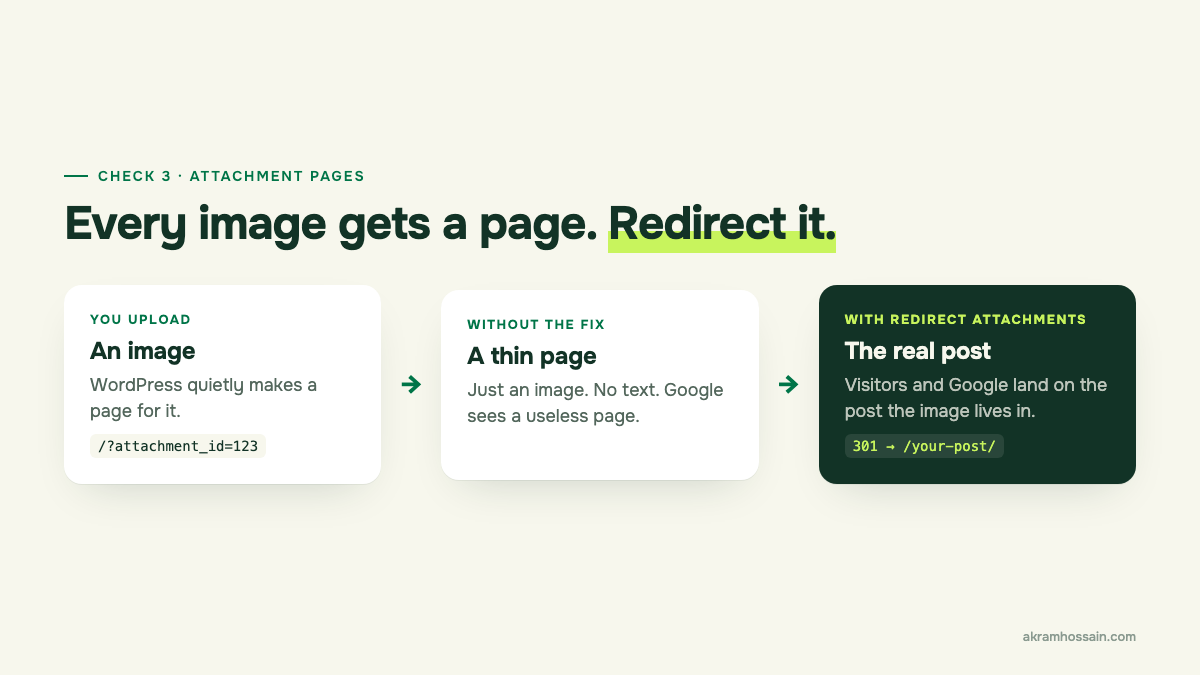
How to fix: go to Rank Math SEO → General Settings → Links and turn on Redirect Attachments. Now each image page sends people (and Google) to the post the image appears in.
Just below it, fill in Redirect Orphan Attachments. “Orphan” means an image that isn’t attached to any post. I send mine to the homepage. If you leave this empty, those pages stay live.
How to check: type yoursite.com/?attachment_id= followed by the ID of any image (you’ll see the ID in the URL when you open an image in the Media Library). It should jump to a real post, not an image page.
4. Is anything important hidden from Google?
A “noindex” tag tells Google: don’t show this page in search. It’s useful for thank-you pages, login pages and thin archives. It’s a disaster on your service pages.
Rank Math can set noindex in three places, so I check all three:
- Site-wide: Rank Math SEO → Titles & Meta → Global Meta → Robots Meta.
- By type: Titles & Meta → Posts, Pages, Categories, Tags. Look at the robots setting on each one.
- Single pages: inside each post’s Rank Math box, under the Advanced tab.
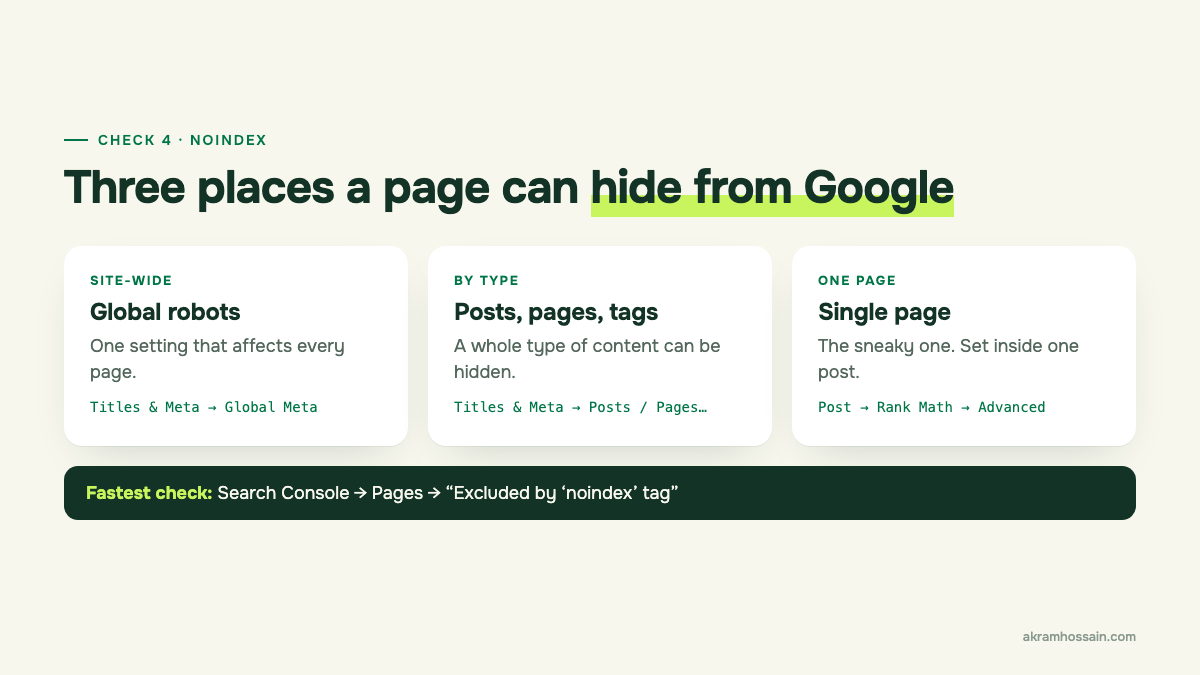
The single-page one is the sneaky one, because you’d have to open every page to find it. So I use Google Search Console instead. Go to Indexing → Pages and open “Excluded by ‘noindex’ tag”. It lists every page Google found with noindex. Read the list. Anything you want people to find shouldn’t be there.
While writing this post, I found my own Bio page set to noindex. Sometimes that’s on purpose, sometimes it’s a leftover. The point is to decide, not to guess.
5. Are people hitting dead pages?
Rank Math has a 404 Monitor that logs every time someone (or a bot) visits a page that doesn’t exist. Turn it on in Rank Math SEO → Dashboard → Modules, then check it under Rank Math SEO → 404 Monitor.
Don’t panic when you see the list. Most of it is bots. When I checked mine, 69 missing URLs came up, but only 25 needed a real look. The rest were bots poking around for weak spots.
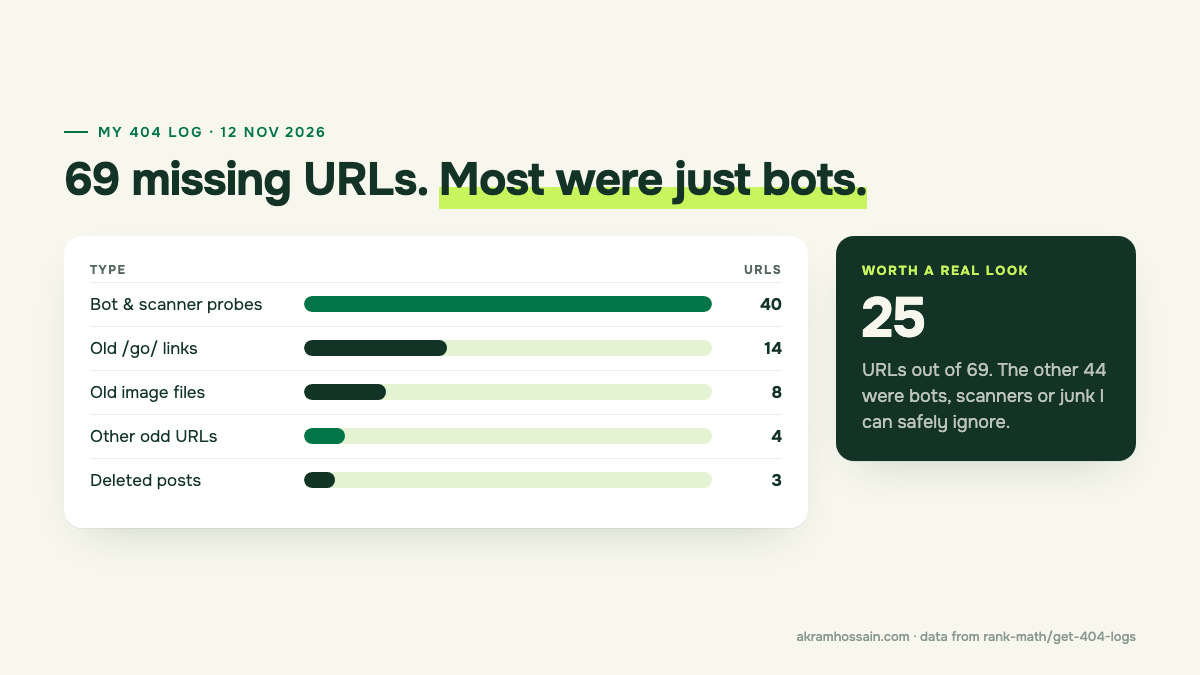
Those 25 led me to 33 dead links hiding inside 10 of my live posts. I wrote the whole story in how I found 33 dead links with Rank Math MCP, including how to let an AI sort the list for you.
6. Are old redirects still pointing somewhere useful?
Redirects pile up over the years. Some point to pages that are gone. Some were made by a plugin you deleted long ago.
That second one got me. My old affiliate links looked like /go/tool-name/. A plugin handled those, and when that plugin was removed, every /go/ link quietly stopped working. The links were still in my posts. They just led nowhere.
How to check:
- Open Rank Math SEO → Redirections and look at the inactive ones. An inactive redirect does nothing. Either turn it on or delete it.
- Click a few redirects and see where they land. If one lands on another redirect, or on a 404, fix it so it goes straight to the final page.
- If you use short link prefixes like
/go/or/recommends/, click one. If it’s broken, the plugin behind it is probably gone.
Bonus setting: if you do use a link prefix like /go/, add it under General Settings → Links → Affiliate Link Prefix. Rank Math will then stop counting those as internal links in its content check.
7. Does your sitemap match your real site?
Your sitemap is the list of pages you hand to Google. It should hold every page you want found, and nothing else.
Open yoursite.com/sitemap_index.xml. Look at which sitemaps are there. Then ask two questions:
- Is something missing? On my site, a brand-new post wasn’t in the sitemap yet. Check that your newest posts show up.
- Is something there that shouldn’t be? Tag archives, author pages or old landing pages often sneak in. Turn them off in Rank Math SEO → Sitemap Settings.
And when you delete a page, decide what Google should hear about it. This is the rule I follow:
- There’s a similar page: add a 301 redirect to it.
- Nothing similar exists: use a 410 (“Content Deleted” in Rank Math → Redirections). It tells Google the page is gone for good, so it stops checking.
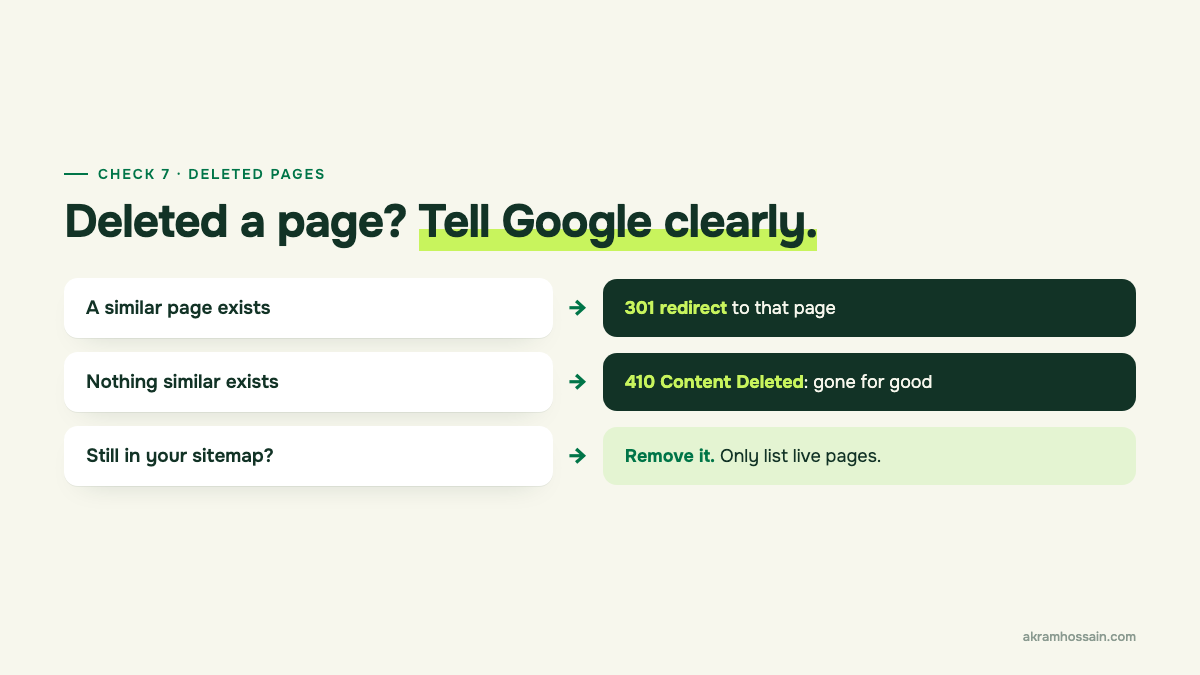
When I removed 5 old private posts this month, I made sure their URLs return 410, not a plain 404.
8. Is there more than one schema fighting on the same page?
Years ago, a lot of people pasted schema code by hand, straight into the post. Then they installed Rank Math, which adds its own schema. Now the page has two blocks saying slightly different things about the same article.
I found exactly this on one of my older posts. It had a hand-written “BlogPosting” block, pasted in long ago, sitting next to Rank Math’s version. It also pointed to images that no longer existed.
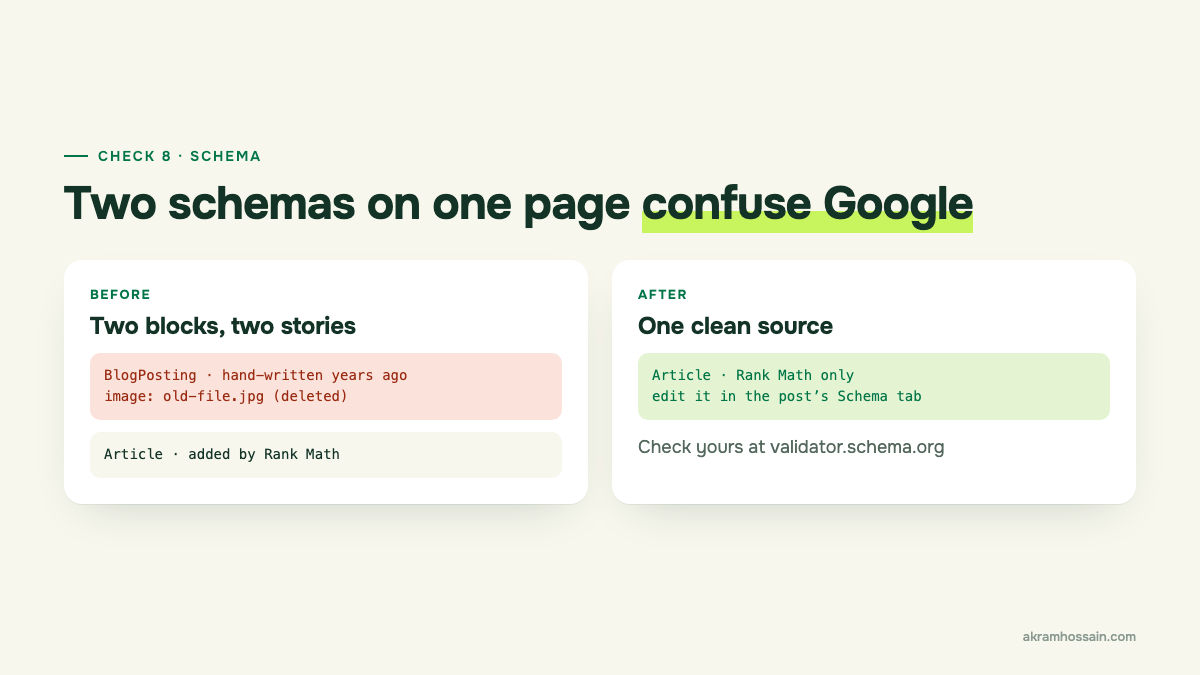
How to check: paste a URL into Schema Markup Validator. If you see the same type (like two Article or BlogPosting items) more than once, look closer.
How to fix: remove the hand-written block from the post (it’s usually in a Custom HTML block or a code widget) and let Rank Math handle it. If you need extra schema, add it from the post’s Schema tab in Rank Math, so everything lives in one place.
9. What does your page look like when someone shares it?
When someone shares your page on Facebook, LinkedIn or WhatsApp, the app grabs a preview image. If you haven’t set one, it picks something random: a logo, a tiny icon or nothing at all. That’s a sad little card, and people scroll past it.
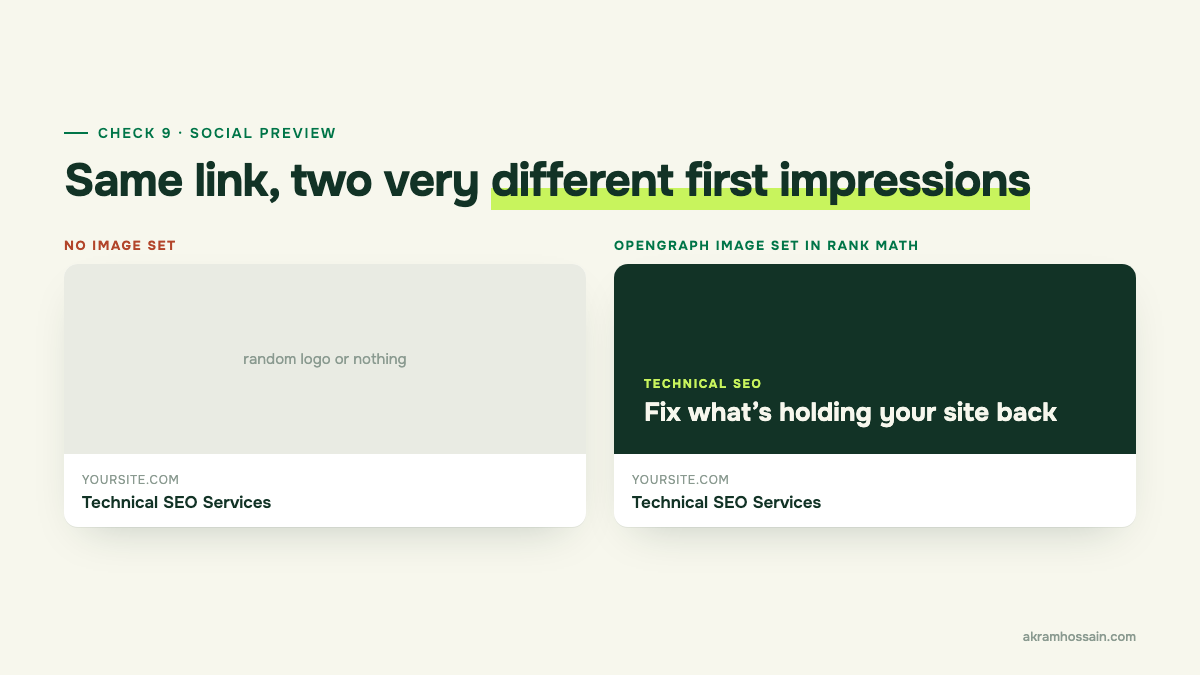
Rank Math handles this in two places:
- A default image for every page: Rank Math SEO → Titles & Meta → Global Meta → OpenGraph Thumbnail. Set this first, so nothing is ever blank.
- A custom image for important pages: in the post’s Rank Math box, open the Social tab and add one image for Facebook. Twitter (X) can reuse it.
I made a custom 1200 × 630 image for 57 pages on my site, all in the same style, so every share looks like it came from the same brand.
How to check: paste your URL into Facebook’s Sharing Debugger or LinkedIn’s Post Inspector. They show you the exact card people will see. If you want the background on how these tags work, I covered it in Open Graph and Twitter Card tags.
10. Do your images have real alt text?
Alt text is a short description of an image. Screen readers read it out loud for people who can’t see the image, and Google uses it to understand what the image shows.
On my site, 29 images that were actually in use had no alt text at all.
Rank Math has a shortcut for this: General Settings → Images → Add missing ALT attributes. It fills empty alt text automatically, usually from the file name. I keep it on as a safety net, but I don’t rely on it. A file name like IMG_4421 becomes alt text like “IMG 4421”, which helps nobody.
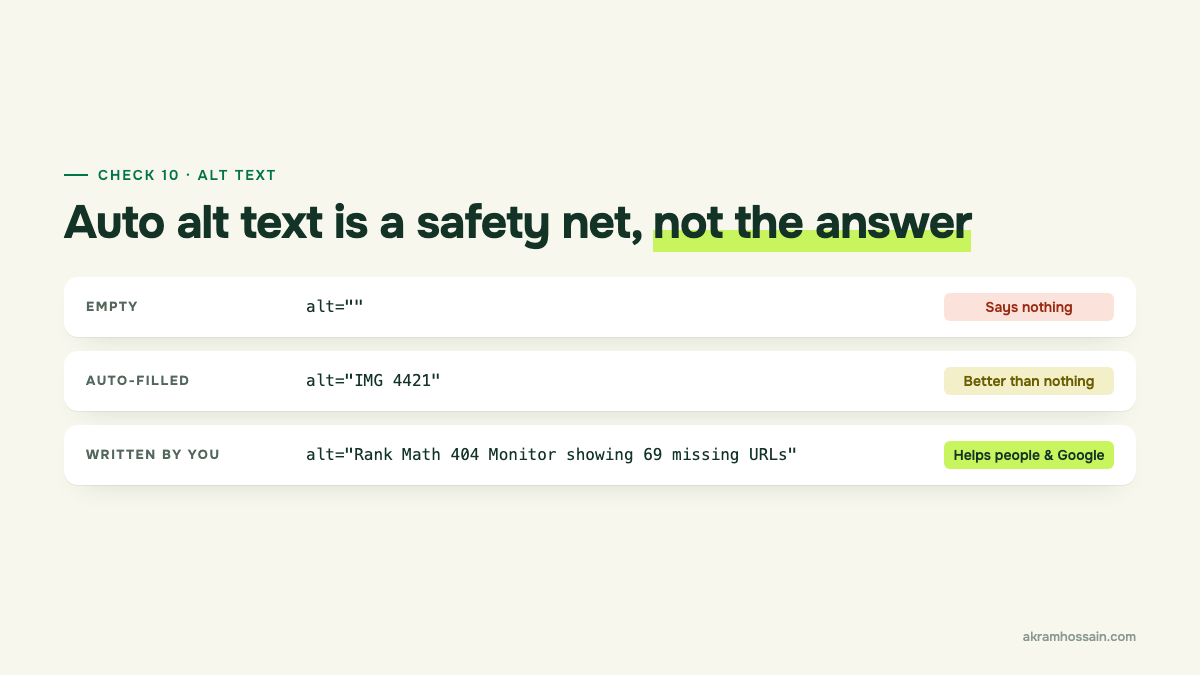
So I write real alt text for every image that matters. Keep it simple. Describe what’s in the image the way you’d describe it to a friend on the phone.
Your 30-minute audit, in one table
| Check | Where to look | What “good” looks like |
|---|---|---|
| 1. Backup | UpdraftPlus + Status & Tools → Backup | A fresh backup you can restore |
| 2. Site name twice | Page source, search “headline” | Site name appears once |
| 3. Attachment pages | General Settings → Links | Image pages redirect to posts |
| 4. Noindex | Search Console → Pages | Only pages you chose to hide |
| 5. 404s | 404 Monitor | No real pages in the list |
| 6. Redirects | Redirections | No inactive or broken ones |
| 7. Sitemap | /sitemap_index.xml | All real pages, no junk |
| 8. Schema | Schema Markup Validator | One article schema per page |
| 9. Share image | Facebook Sharing Debugger | A clear, on-brand image |
| 10. Alt text | Media Library | Real words on every image you use |
How often should you run this?
I run the full list when I take on a new site. After that, I check the 404 Monitor and redirects once a month, and do the whole thing again after any big change: a redesign, a new theme or removing a plugin. Removing a plugin is the big one. That’s exactly how my /go/ links broke.
If you’re not sure which Rank Math plan you need for any of this, everything above works on the free version except a few extras. I explained the plans in Rank Math AI explained.
Run the list on your site this week. And if you’d rather have someone go through it for you and fix what’s broken, that’s exactly what I do in my technical SEO service.