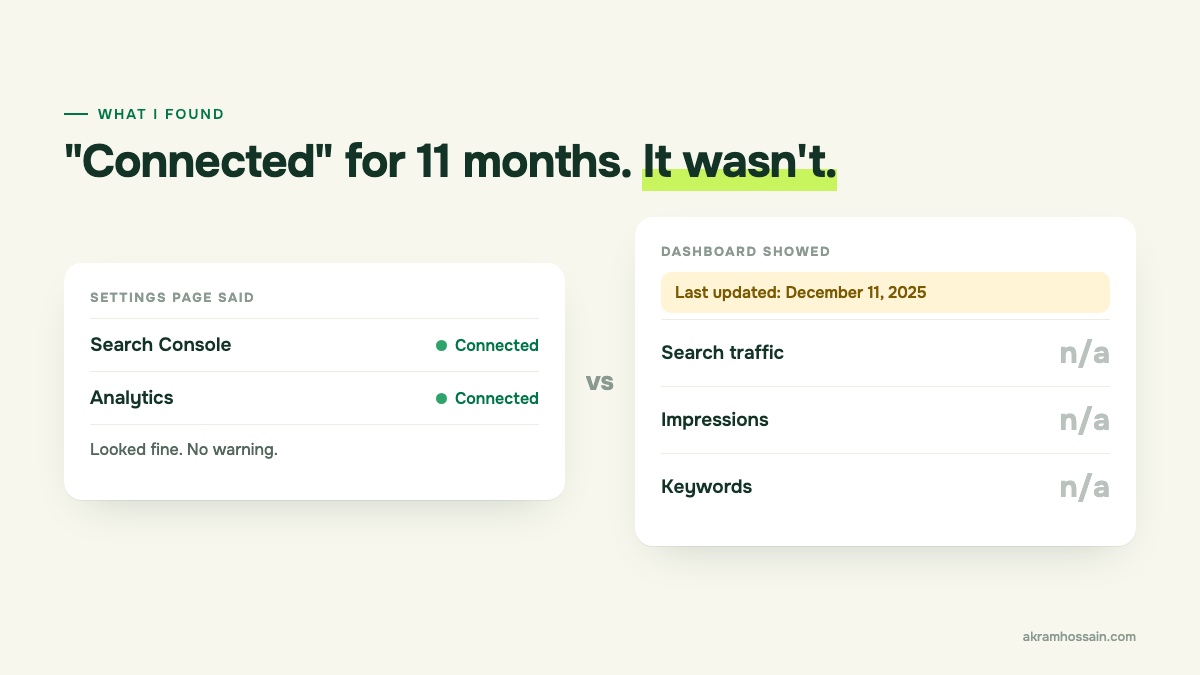
My Rank Math Analytics said “Connected” for 11 months. It wasn’t.
I opened the dashboard to pull numbers for this post and found every box saying n/a. Search traffic, impressions, keywords: nothing. The small grey text in the corner said “Last updated December 11, 2025.” The settings page still showed two green “Connected” labels, so nothing ever warned me.
I fixed it in two minutes. Then I used the fresh data to do the thing this post is really about: finding the pages that are almost on page one of Google, and giving them a small push. In this post I’ll show you how to check your own Analytics is really working, how to find those “almost there” pages in Rank Math, my real list from this site, and the five fixes I use on every one of them.
First, check your Rank Math Analytics is actually working
This takes two minutes, and I’d do it before anything else in this post. If your data is old or missing, every decision you make from it will be wrong.
Here’s what fooled me. Rank Math connects to Google with a sign-in “token”. When that token stops working, the settings page can still say Connected, because it’s showing what was set up, not whether it still works. The only way to know is to test it.
I also wanted to know why it stopped. WordPress keeps a list of its background jobs under Tools → Scheduled Actions. I searched for “rank_math” and opened the Failed tab: 212 failed Rank Math jobs, every one from 11 December 2025, each stopped after running for 5 minutes. That’s the exact day my dashboard froze. If your data looks stuck, that list is a good place to look for the date it broke.
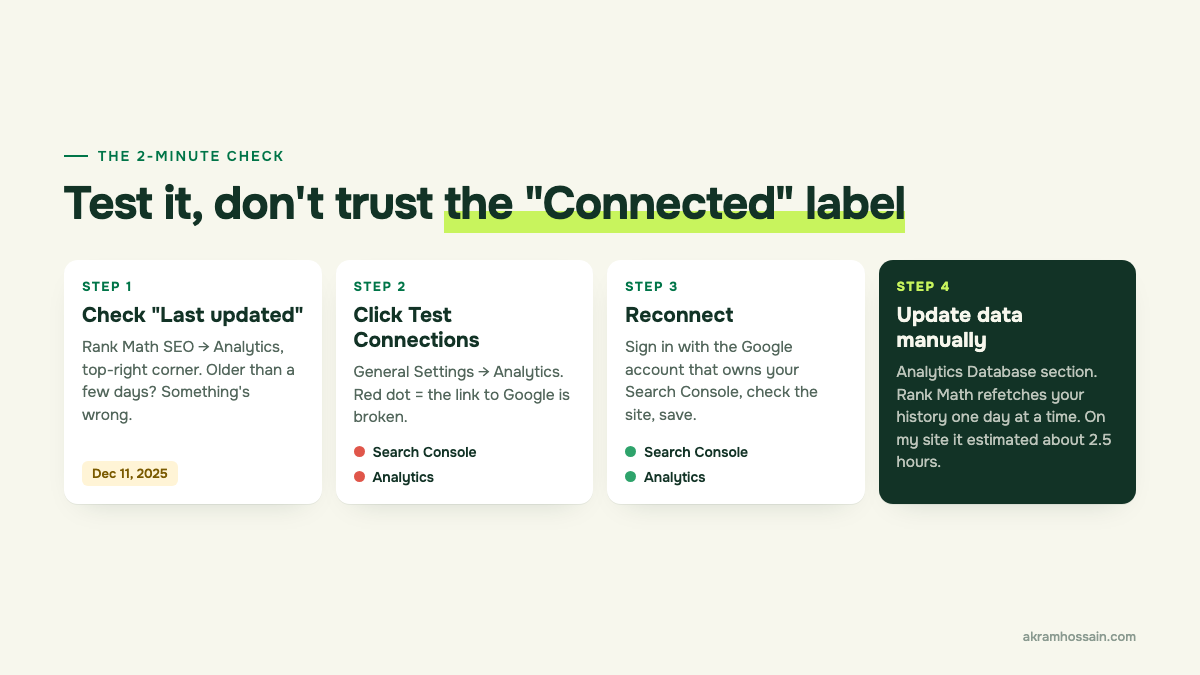
- Look at the date. Go to Rank Math SEO → Analytics. In the top-right corner you’ll see “Last updated”. If that date is more than a few days old, something’s wrong.
- Test the connection. Go to Rank Math SEO → General Settings → Analytics and click Test Connections at the top. A green dot next to Search Console and Analytics means it works. A red dot means the link to Google is broken, even if it still says “Connected”.
- Reconnect if needed. Click Reconnect, sign in with the Google account that owns your Search Console, check the site and property are right, and save.
- Pull the data back in. Scroll down to Analytics Database and click Update data manually. Rank Math then fetches your history one day at a time in the background. On my site it estimated about two and a half hours.
One thing to know: when I reconnected, Rank Math cleared the old stored data and started fresh. That’s fine, because it fetches the history again from Google. Just don’t panic when you see “Cached Days: 0” for a while.
If you want an early warning next time, turn on Email Reports on the same settings page. A report that suddenly shows zero is much easier to notice than a dashboard you don’t open.
What a “quick win” page is (in plain English)
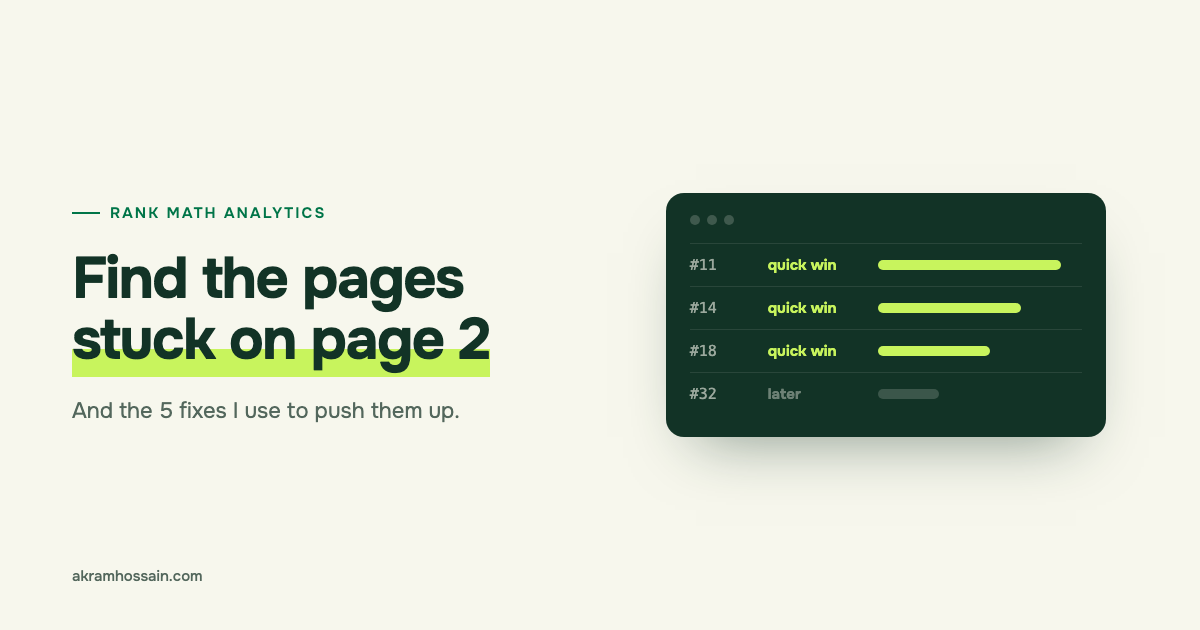
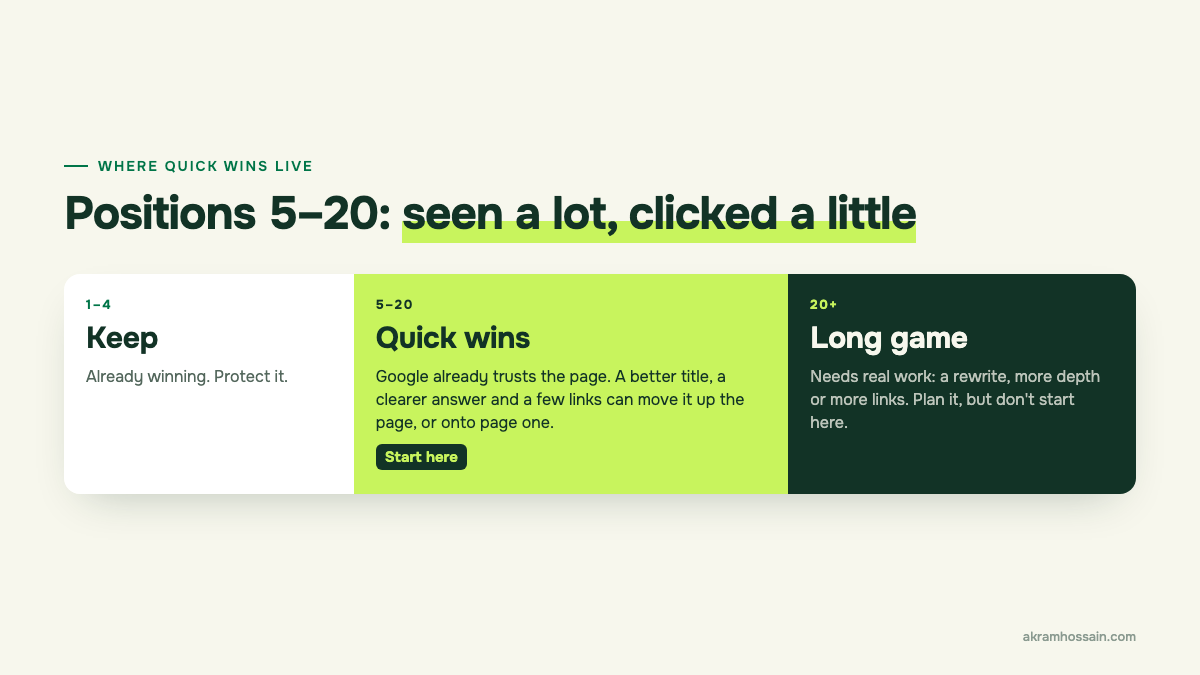
A quick win is a page that Google already shows, just not high enough for people to click it.
Think about how you search. You look at the first few results, maybe scroll a little, and click. Very few people go to page two. So a page sitting at position 11 gets seen a lot but clicked very little. Move that same page to position 5 and the clicks can jump, without writing a single new post.
That’s why I look at these pages first. Google has already decided they’re relevant. They just need a bit more help than a brand-new page that’s starting from zero.
My simple rule for a quick win:
- Average position between 5 and 20. Close to the top, but not getting the clicks.
- Lots of impressions. People are searching for it and Google is showing your page.
- Few clicks. That gap between “seen” and “clicked” is the opportunity.
How to find quick wins in Rank Math, step by step
Everything you need is in Rank Math SEO → Analytics. Here’s exactly what I click, in order.
- Pick your date range. In the top-right corner there’s a dropdown that says 30 Days. I start with 30 days because it shows what’s happening now. If your site is small and the numbers look thin, try a longer range.
- Open the Keywords tab. At the top you’ll see four boxes: Top 3, 4–10, 10–50 and 51–100 positions. Quick wins live in the 4–10 box and the top part of the 10–50 box. On my site that was 3 and 33 searches.
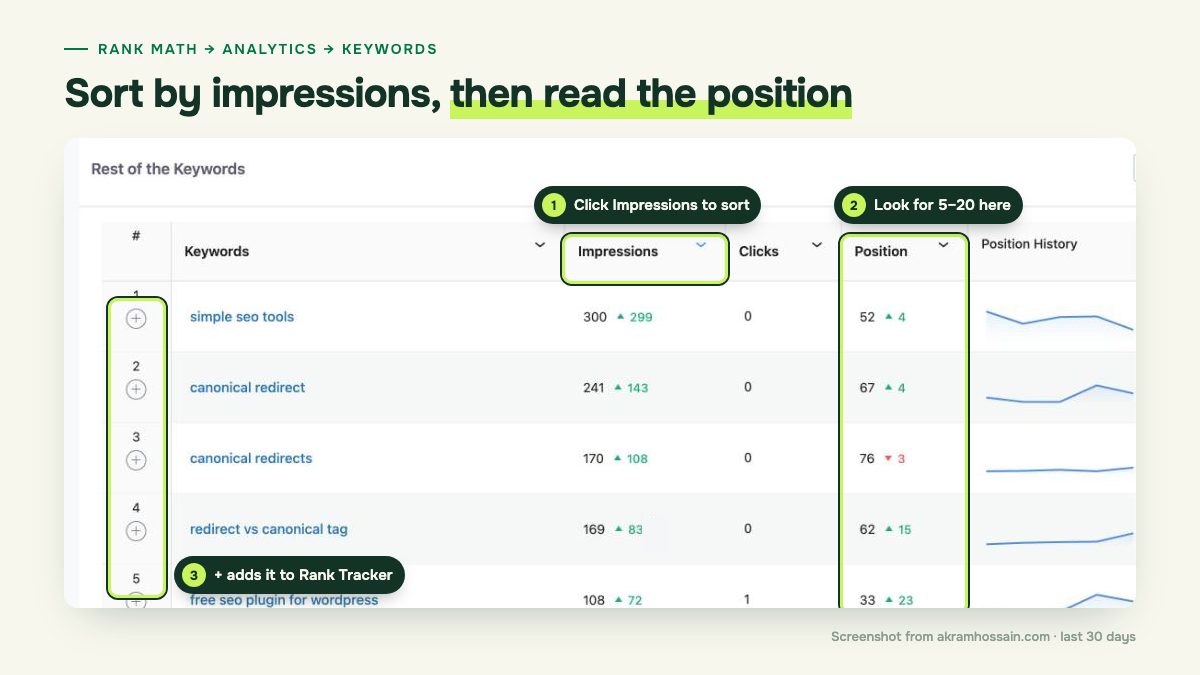
- Sort by impressions. Scroll down to the table called Rest of the Keywords and click the Impressions column so the most-seen searches are at the top. Now read across to the Position column and look for anything between 5 and 20.
- Find the page behind it. Go to the SEO Performance tab, which lists your posts and pages. Click a post’s title to open its own report. It shows every search that one page appears for, with its position, impressions and clicks. This is where the real clues are.
- Track the ones you’ll work on. The small + button next to each keyword adds it to Rank Tracker (Rank Math PRO), so you can watch it move after you make changes.
One thing that confused me at first: Rank Math’s numbers won’t match Search Console exactly. Rank Math only keeps searches where you rank in the top 100, which keeps the reports focused on what you can actually improve. So don’t worry if the totals look a bit different.
My real list: pages on this site that are almost there
Here’s my honest starting point. In the last 30 days (27 October to 24 November 2026), my site showed up in Google 2,650 times and got 8 clicks. The average position across all my searches was about 50. That’s not great, and it’s exactly why this list matters.
These are my pages sitting between positions 5 and 20, sorted by how often Google showed them:
| Page | Avg. position | Impressions | Clicks |
|---|---|---|---|
| Best SEO tools for small businesses | 11 | 555 | 0 |
| Best free SEO plugins for WordPress | 12 | 513 | 1 |
| HubSpot free AI tools for marketing | 14 | 118 | 0 |
| Rank Math free SEO tools | 16 | 39 | 0 |
| SEO agency in Bangladesh | 17 | 27 | 0 |
| Yoast and All in One SEO vs Rank Math | 11 | 15 | 0 |
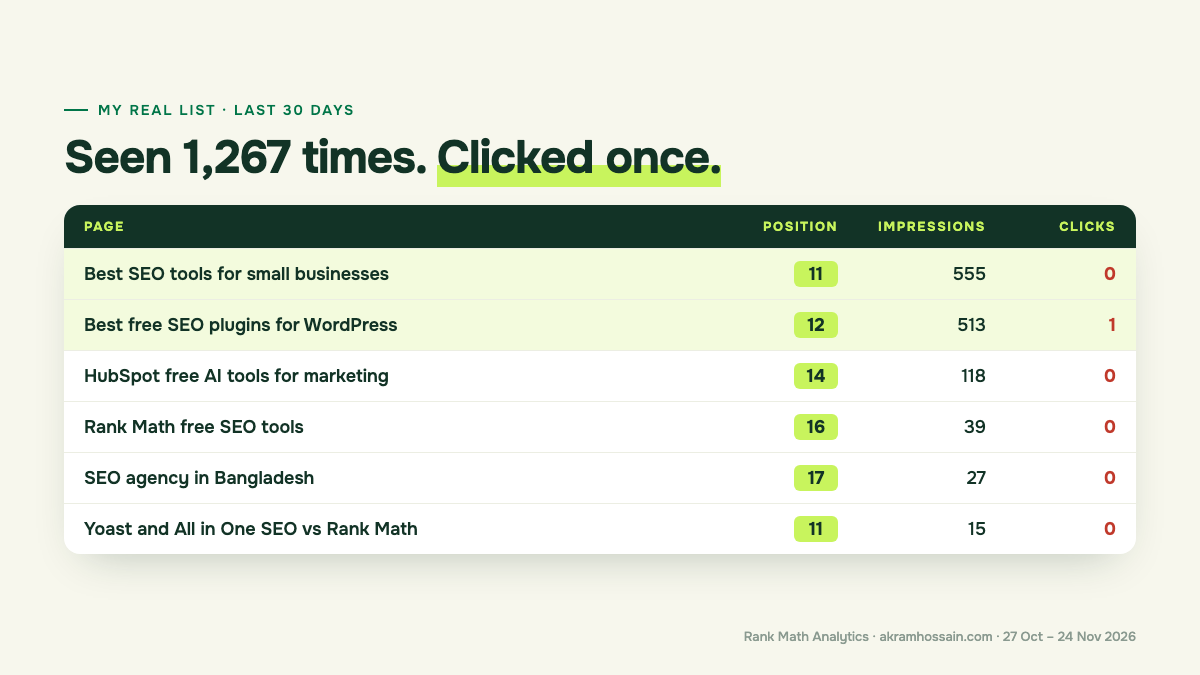
Two pages stand out straight away. My SEO tools and SEO plugins posts were shown more than 500 times each and got one click between them. When I opened each page’s own report, the reasons were pretty clear:
- Best SEO tools for small businesses: the title promises tools to “improve productivity”, but that’s not what people search. Its biggest search is “simple seo tools” (300 impressions), and others ask for “affordable” tools. Neither word is in the title.
- Best free SEO plugins for WordPress: it shows up for more than 40 different “free WordPress SEO plugin” searches, so the topic is right. But the title still says “[All Are Tested]” with no year, and one search even includes “2020”. People want a list that’s clearly up to date.
- Yoast vs Rank Math: the title still says “Who is the Winner in 2025?”. It’s nearly 2027. That alone can stop someone clicking.
- The smaller ones (HubSpot AI tools, Rank Math free tools, SEO agency in Bangladesh) get fewer impressions, so I’ll work on them after the top two.
There’s also one near miss worth watching: my SEO professionals in Bangladesh page sits at position 21 with 370 impressions. It’s just outside my 5–20 rule, so it’s next in line once the top two move.
The 5 fixes I use on every quick-win page
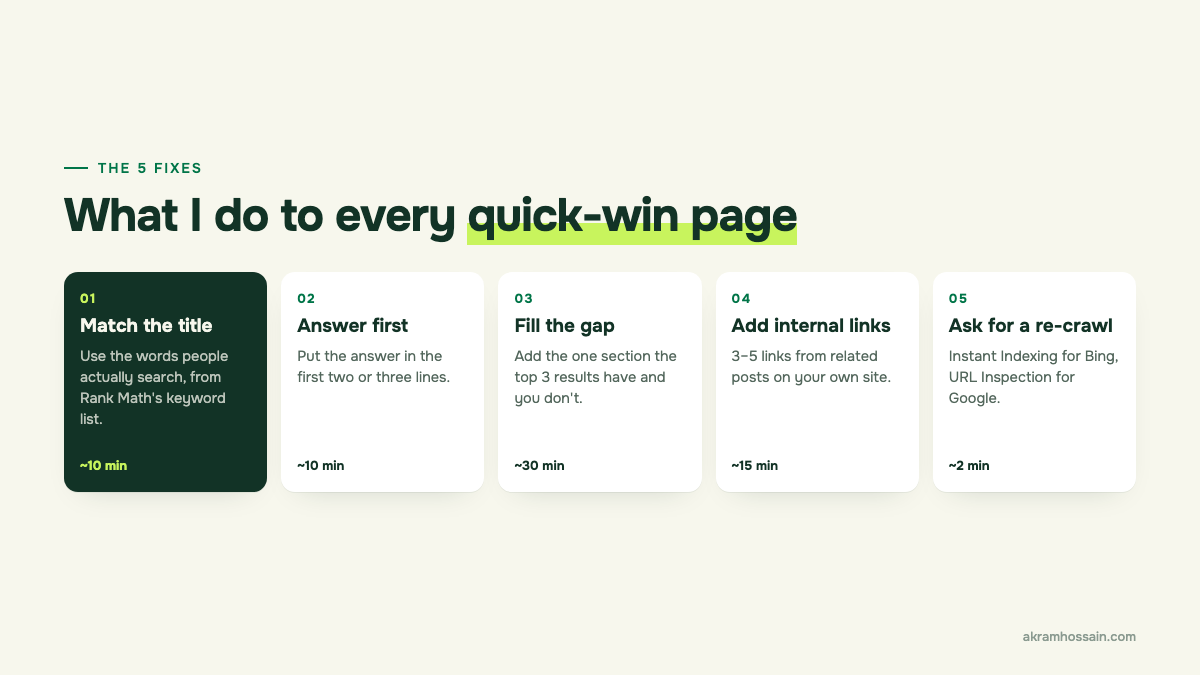
None of these need a developer, and most take 10 to 30 minutes per page. I go through them in this order, because the first ones are the fastest and often enough on their own.
1. Match the title to what people actually search
This is the one I see most. You wrote the post for one phrase, but Google shows it for a slightly different one. Rank Math tells you exactly which searches your page appears for. If the main one isn’t in your title, people scroll right past it.
Open the post, edit the SEO title and meta description in the Rank Math box, and use the words people really search. Keep the title around 60 characters, and make the description say what the reader gets. Not sure how the two fit together? Here’s whether your title and meta title should be the same.
Here’s a real example from my list. This is my SEO tools post’s current title, and the one I’d switch it to:
- Before: 11 Best SEO Tools For Small Businesses to Improve Productivity
- After (what I’d test): 11 Best SEO Tools for Small Businesses: Simple and Affordable
Same post, same URL. The new title just uses the words people were already typing: “simple”, “affordable” and “small business”. “Improve productivity” was never what they searched for.
2. Answer the question in the first few lines
If someone searches a question and your page makes them read three paragraphs of background first, they leave. Google notices that. Put the answer in the first two or three sentences, then explain the details below. I show this layout in my guide to blog post structure.
3. Add the section people are clearly looking for
Search your main keyword and open the top three results. What do they cover that you don’t? Maybe it’s a price range, a comparison, a step-by-step, or an up-to-date screenshot. Add that one missing section. Don’t rewrite the whole post. Just fill the gap. My on-page SEO checklist is a quick way to spot what’s missing.
4. Point a few internal links at it
Links from your own related posts tell Google “this page matters”. Find three to five posts on the same topic and add a natural link to your quick-win page, using words close to its keyword. If you have Rank Math’s AI Link Genius, it can suggest these for you.
5. Update the date and ask Google to look again
Once your changes are real (not just a new date), update the post and let search engines know. Rank Math’s Instant Indexing module can send the URL through IndexNow to Bing and other engines. For Google, use URL Inspection → Request indexing in Search Console.
What not to do
I’ve seen people lose rankings on these pages by trying too hard. Avoid these:
- Don’t change the URL. The page already has its place in Google. A new URL starts that over.
- Don’t stuff the keyword. Using the phrase 15 more times won’t help. Answering it better will.
- Don’t rewrite everything. Something on the page is working, or it wouldn’t rank at all. Keep it, and improve around it.
- Don’t change ten pages at once. Do one or two, wait, and see what moved. Otherwise you’ll never know which change helped.
How to track the results (and when to give up on a page)
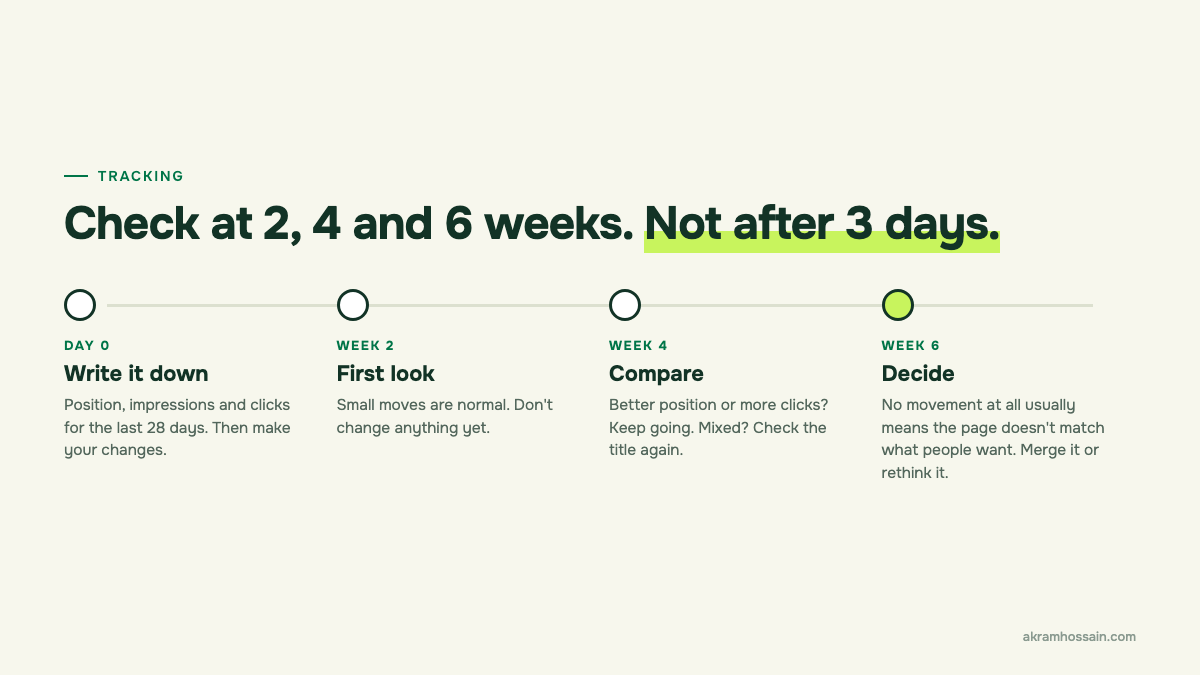
Before you change anything, write down where the page is today: its average position, impressions and clicks for the last 28 days. Then check again at two, four and six weeks.
If you have Rank Math PRO, add the page’s main keyword to Rank Tracker so you can see the trend in one place. Otherwise, the post’s own view in Analytics → SEO Performance works fine.
Rankings move slowly, so don’t judge a change after three days. But if a page hasn’t moved at all after about six weeks, the problem usually isn’t the words on the page. It’s that the page doesn’t match what people want when they search. At that point I either merge it into a stronger post on the same topic or rethink what the page is for.
Your 20-minute quick-win checklist
- Check “Last updated” in Rank Math Analytics, and click Test Connections.
- Find pages at positions 5 to 20 with lots of impressions and few clicks.
- Pick the top two or three.
- Fix the title and description, answer first, fill the missing section, add internal links.
- Write down today’s numbers, then check again in two, four and six weeks.
If you’re new to Rank Math, start with my 30-minute Rank Math audit to make sure the basics are right, and my guide to Rank Math AI plans if you’re deciding whether PRO is worth it. The other tools I use are on my Tools & Deals page. And if you’d rather I find the quick wins on your site for you, book a paid session and we’ll go through your own data together.